How to Separate PDF Pages: Split a PDF into Multiple Files Easily (Step-by-Step Guide 2026)
In today’s digital world, knowing how to Split a PDF into Multiple Files has become an essential skill for students, professionals, and remote workers. Whether you are handling reports, assignments, or business paperwork, large files often need to be broken down into smaller, manageable parts for easier sharing and better organization.
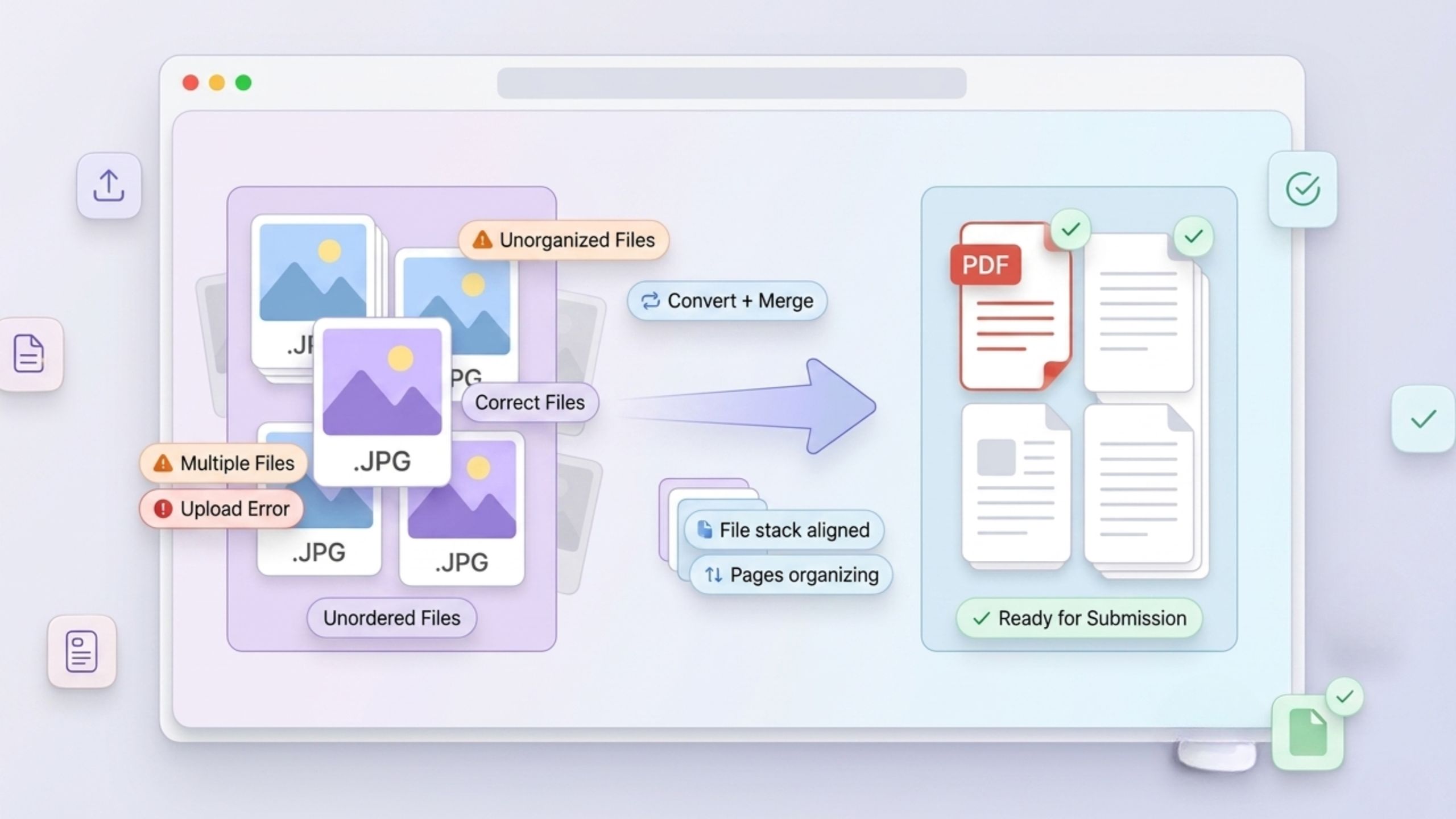
This process improves PDF document management, enhances file organization, and ensures smooth digital document submission across platforms like school portals and job systems. It also helps reduce upload errors and keeps your files clean, structured, and professional. By learning this simple PDF splitting technique, you can easily handle large files and improve your workflow efficiency every day.
Table of Contents
What Does It Mean to Separate PDF Pages?
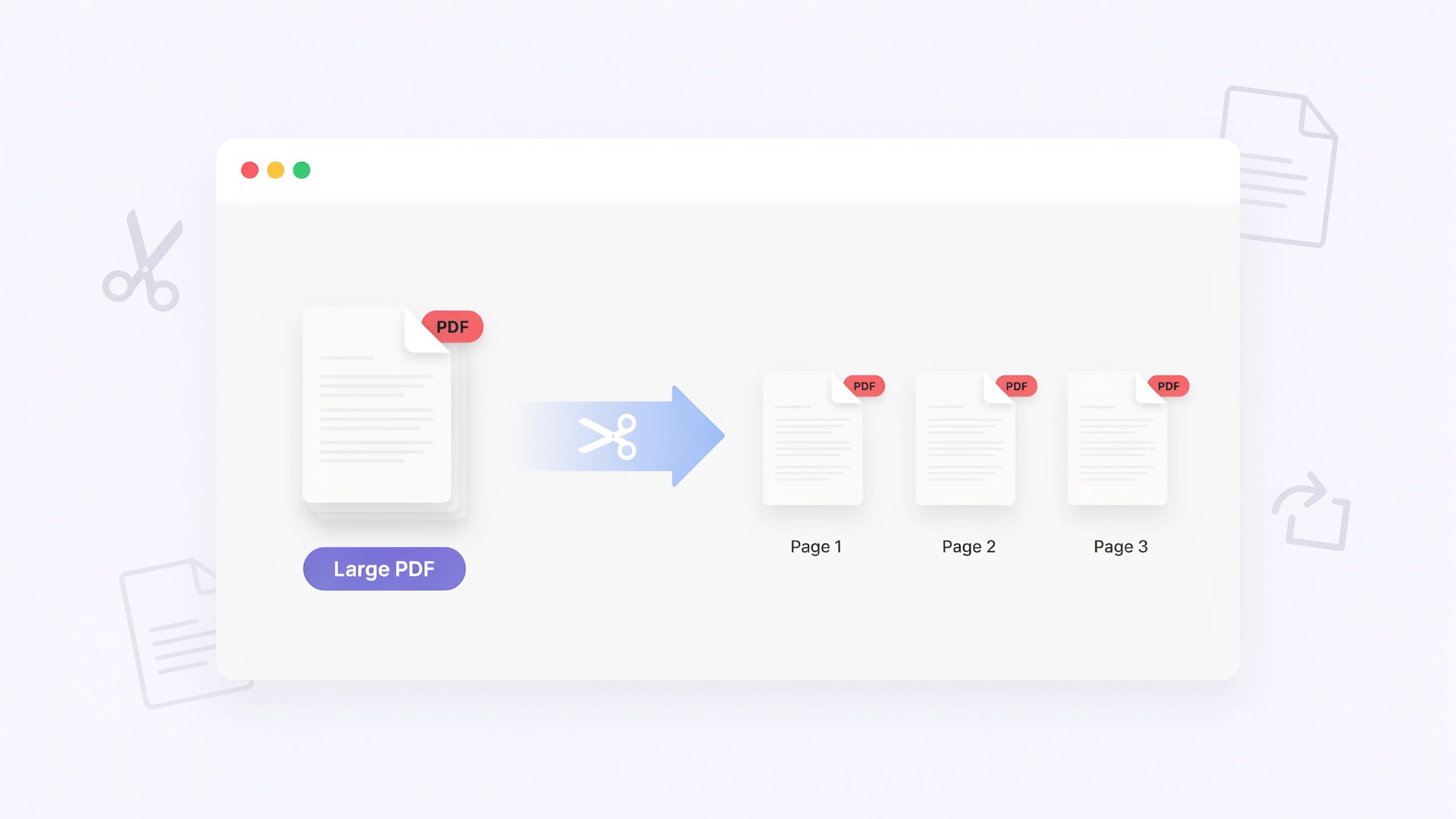
Separating PDF pages means breaking one file into smaller parts. Each part becomes a new PDF document. This process is common when you need only specific pages instead of the full file. It helps improve PDF page organization and clarity.
For example, a 50-page report can become five smaller files. Each file stays neat and readable. This improves document workflow and makes sharing easier in school and office systems.
Why Would You Need to Split a PDF?
You often need to split PDFs for school and work in the USA. Many platforms like Canvas or job portals require clean uploads. A large file can cause errors in file upload or exceed file size limit.
For example, students submit handwritten assignments or certificates as separate pages. Professionals send resume submission, contracts, or identity verification documents in organized formats
A quick comparison helps:
| Situation | Why Split PDF Helps |
|---|---|
| Academic Submission | Keeps assignments clean and structured |
| Job Application | Separates resume and certificates |
| Expense Reports | Organizes receipts clearly |
| Bank Documents | Improves readability |
Different Ways to Separate PDF Pages
There are many ways to handle PDF document creation. The most common method is splitting by page range. You can also extract single pages or divide files into equal parts.
Modern tools like PDF Editor or PDF Converter allow smart splitting. You can also use batch processing to handle multiple files at once, which is helpful for offices and schools.
Common methods include page range splitting, single-page extraction, and dividing scanned files into sections. These methods improve page layout and reduce confusion during submission.
How to Separate PDF Pages Online (Step-by-Step)
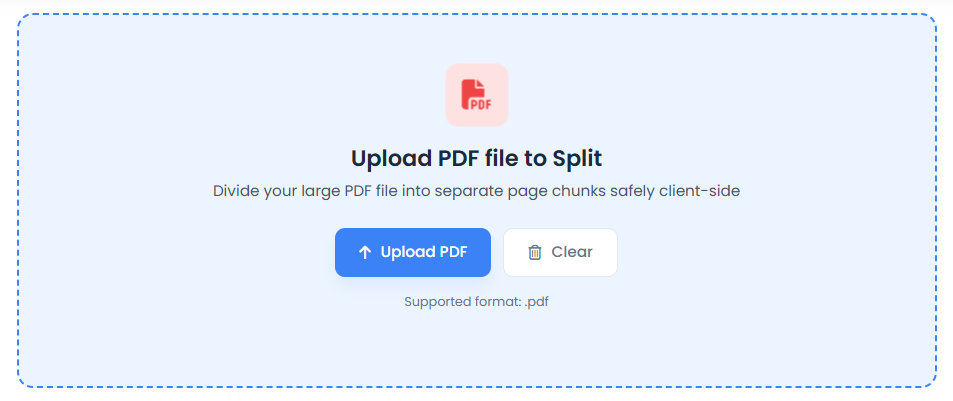
Online tools make how to separate PDF pages very simple. You upload your file, choose pages, and download the result. Tools like a online Tools Master act as a JPG to PDF converter and also support splitting.
This process is fast and works on any browser. It is widely used for online file conversion and convert photos to PDF workflows.
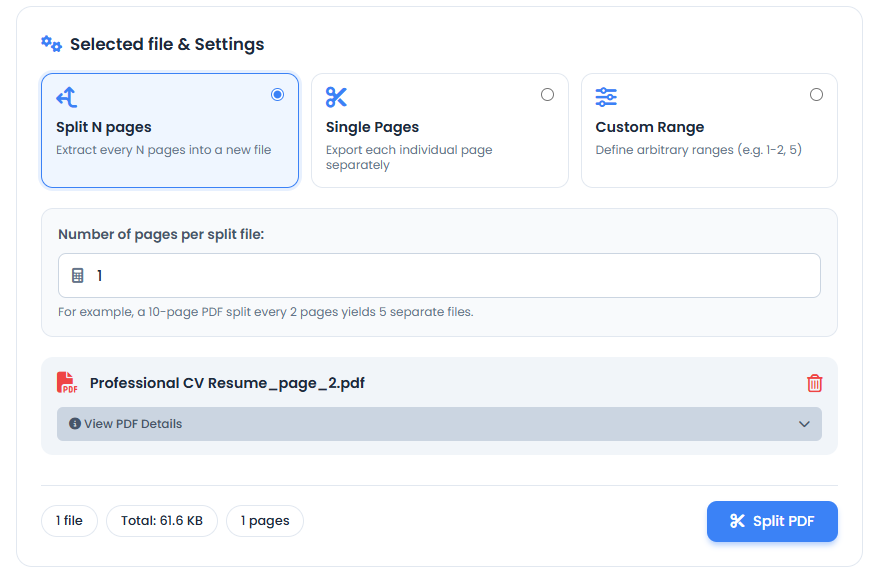
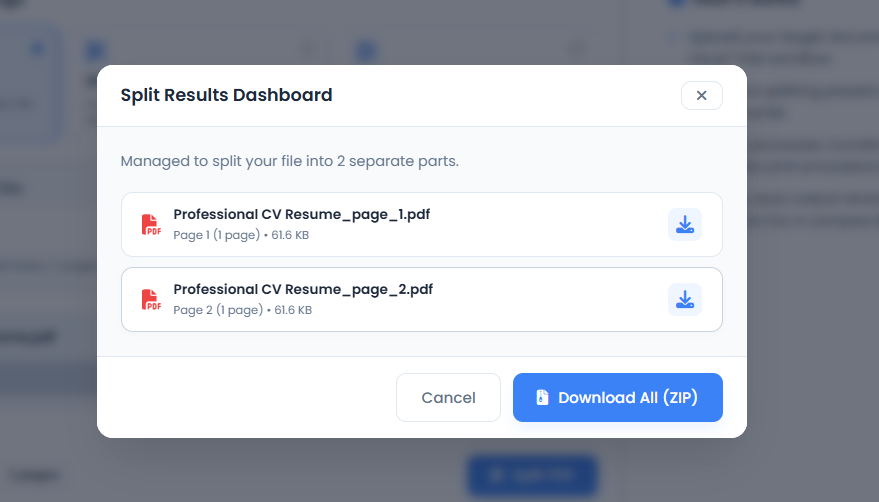
A typical flow looks like this:
Step 1:
Step 2:
Step 3:
| Step | Action |
|---|---|
| Step 1 | Upload file using File Upload system |
| Step 2 | Select pages for split |
| Step 3 | Apply split option |
| Step 4 | Download new files |
This method supports cloud processing, secure file transfer, and keeps PDF security intact when using trusted platforms
How to Split PDF Pages on Windows and Mac
On Windows, you can use Microsoft Print to PDF. It works well for basic PDF editing tools. It is simple but limited in advanced control.
On Mac, Preview app allows easy page selection. You can reorder pages and save a new PDF format file quickly. It supports clean page reordering and simple editing.
However, desktop tools also support lossless compression, DPI (Dots Per Inch) adjustment, and better PDF optimization for large files like reports and portfolios.
How to Separate PDF Pages on Mobile Devices
Mobile devices now support full mobile document submission. Android and iPhone apps allow quick splitting and conversion. You can also use an image to PDF converter or JPEG to PDF converter.
This is useful when dealing with HEIC, JPEG, or scanned photos. Students often use mobile tools for quick convert pictures to PDF tasks.
However, mobile tools may reduce control over PDF quality settings and advanced editing. They are best for fast and simple work.
Browser vs Online Tools vs Desktop Software
Each method of PDF file submission has strengths. Browser tools are fast. Online tools offer flexibility. Desktop software gives full control over editing.
For example, online tools support merge images into one PDF or batch JPG to PDF conversion. Desktop tools are better for PDF annotation and secure editing.
| Method | Best Use | Weakness |
|---|---|---|
| Browser Tools | Quick tasks | Limited features |
| Online Tools | Flexible workflows | Internet required |
| Desktop Software | Advanced editing | Installation needed |
Security and Privacy When Splitting PDFs
Security is very important when handling digital portfolio, contracts, or bank statements. Trusted tools use SSL Encryption and Secure File Transfer to protect data.
Many platforms also offer automatic deletion of files after processing. This protects document accessibility and prevents misuse of sensitive information.
Always avoid unknown tools when dealing with identity verification documents or professional documents.
Common PDF Splitting Problems and Solutions
Many users face issues like large file size or broken formatting. These happen due to poor PDF Compression or incorrect image resolution settings.
For example, scanned files may need OCR (Optical Character Recognition) to become searchable. Without it, text inside scanned documents cannot be selected.
| Problem | Solution |
|---|---|
| Large file size | Use compression |
| Password file | Unlock before split |
| Blurry output | Adjust DPI |
| Scanned PDF | Apply OCR |
Best Practices for Separating PDF Pages
Good practice improves your document workflow and reduces errors. Always keep original files safe before editing. This protects your work from accidental loss.
You should also optimize files before submission. Use correct lossless compression or lossy compression depending on need. This improves PDF optimization and ensures smooth uploads.
Proper naming also helps in document management and makes files easier to track during academic submission or job application processes.
FAQs
How do I separate PDF pages into multiple files?
You can upload your PDF to a splitter tool, select page ranges, and download separate files instantly.
Does splitting a PDF affect the quality of images or fonts?
No, splitting a PDF does not reduce quality because it only rearranges pages, not the content.
Are my files safe when I use online splitters?
Yes, if you use trusted tools with SSL encryption and automatic file deletion after processing.
Can I split a massive 500-page document into individual files?
Yes, most advanced tools support batch splitting and can separate every page into its own file.
What is the easiest way to split a large PDF?
The easiest way is using an online PDF splitter where you upload, choose pages, and download instantly.
Final Thoughts
Learning how to separate PDF pages gives you control over your digital work. It improves speed, organization, and submission quality for both school and office tasks.
When you master PDF document handling, you reduce stress during deadlines. You also improve clarity in every digital submission and make your work look more professional and structured.